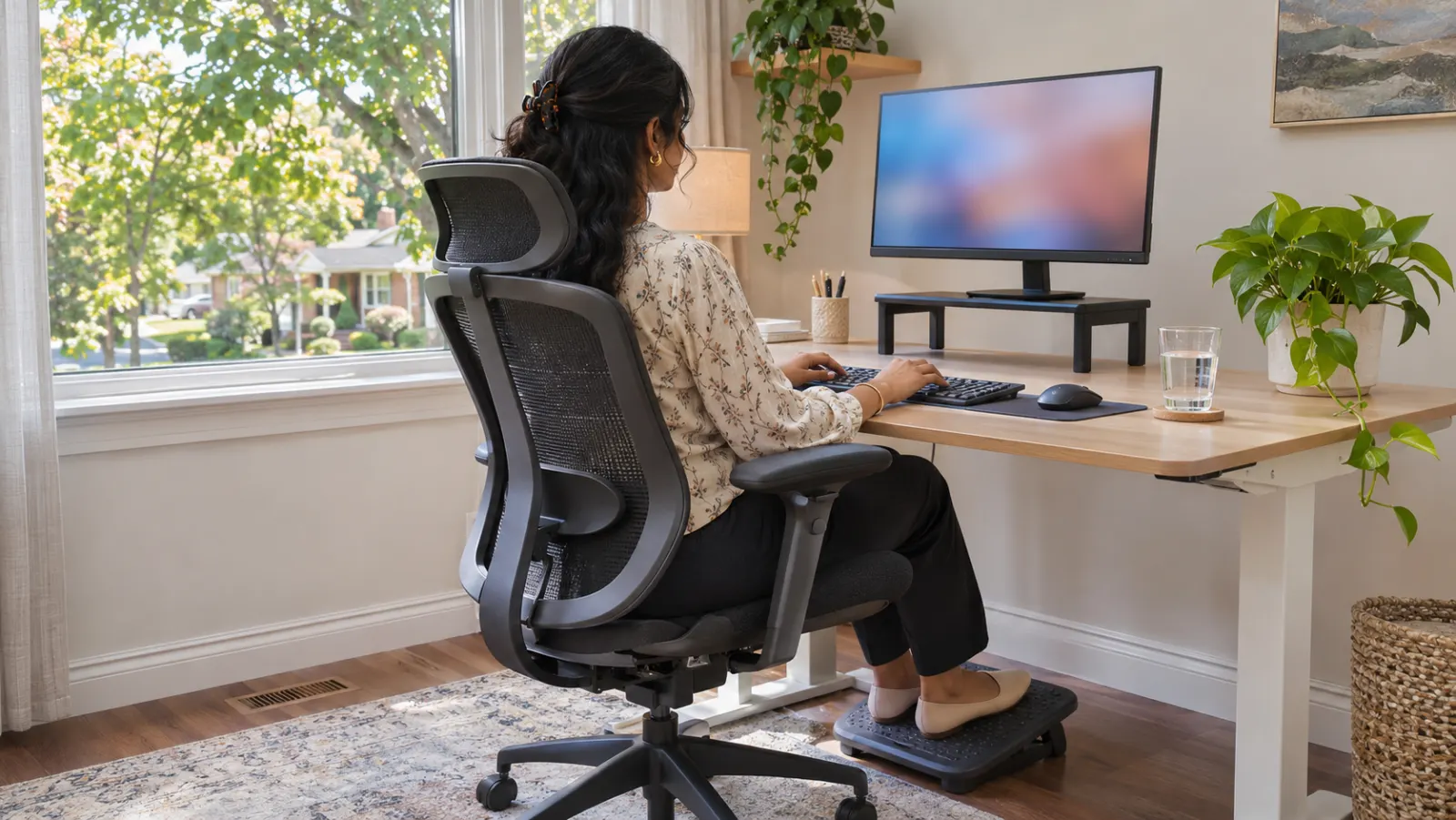
The week after Labour Day has a particular feel. Lunches are packed again, the Eglinton buses are busier, and a lot of people who spent a relaxed summer working from a patio chair or a cottage dock are suddenly back at a desk for eight hours a day. Some are returning to the office more days a week than before. Others are settling back into a home office that, if we are honest, is a laptop on the dining table.
By the end of the second week, the complaints start to arrive: a stiff neck that does not loosen until Saturday, a dull ache between the shoulder blades, tingling fingers, eyes that burn by mid-afternoon, a headache on the drive home. None of these is usually dangerous. But they are real, they add up, and many of them are preventable with small changes to how a workstation is set up and how the workday is structured.
This guide walks through those changes from the ground up, from your feet to your screen, then looks at the habit that matters even more than any chair: moving. We will also cover when desk-related aches deserve a visit to the doctor.
The real goal: variety, not perfect posture
For years, office workers were told to sit bolt upright with a perfectly straight back and never slouch. Current thinking is more relaxed. There is no single correct posture that protects your body if you hold it all day. Even an ideal position becomes uncomfortable when muscles and joints stay loaded the same way for hours.
The better aim is a workstation that lets you sit comfortably in a neutral position, plus a routine that keeps you changing that position often. Think of good ergonomics as reducing the strain of each hour, and movement as resetting the clock.
Building your setup from the floor up
Adjust things in this order, because each step affects the next.
Feet and chair
Start with the chair height. Your feet should rest flat on the floor, or on a footrest, with your knees roughly level with or slightly below your hips. If your feet dangle after you raise the chair to suit the desk, a footrest, a sturdy box or a stack of old textbooks will do the job.
Next, the backrest. Sit back into the chair so your lower back is supported. Many office chairs have adjustable lumbar support; if yours does not, a small cushion or a rolled towel behind the curve of your lower back helps. The seat depth should leave a gap of a few fingers’ width between the front edge of the seat and the backs of your knees.
Armrests are helpful if they let your shoulders relax, and harmful if they push your shoulders up toward your ears. Lower them or remove them if they get in the way of pulling the chair close to the desk.
Keyboard and mouse
With your shoulders relaxed and your elbows bent at roughly a right angle, your forearms should be about level with the desk surface. If the desk is too high, raise the chair and use a footrest. Keep the keyboard and mouse close enough that you are not reaching forward, and keep the mouse right beside the keyboard rather than off to the side.
Your wrists should stay fairly straight while typing, not bent sharply up or down. Folding out the little feet under the keyboard actually tilts the wrists backward for many people, so try it flat. A light touch on the keys and a relaxed grip on the mouse reduce strain on the forearm muscles.
If you already have numbness or tingling in your hands, especially at night, that may be more than a setup problem. Carpal tunnel syndrome is one common cause, and it is worth getting checked rather than just buying a new mouse.
Screen height and distance
This is the change that helps the most people. A screen that sits too low pulls the head forward and down, which loads the neck and upper back all day.
- Place the monitor about an arm’s length away
- Set the top of the screen at or slightly below eye level, so you look straight ahead or slightly down at the content
- If you wear bifocals or progressive lenses, lower the screen a little further so you are not tipping your head back to read through the bottom of your glasses
- Centre the screen in front of you; if you use two monitors equally, place the seam between them in front of your nose
- Position the screen at a right angle to windows to reduce glare
The laptop problem
Laptops are wonderful for portability and difficult for posture, because the screen and keyboard are attached. If the screen is at eye level, the keyboard is too high; if the keyboard is at the right height, you are looking down at the screen.
For anyone working on a laptop for more than an hour or two a day, the fix is simple: raise the laptop on a stand or a stack of books so the screen is at eye level, and use a separate keyboard and mouse. That setup costs less than many people expect and makes a big difference.
Phones and documents
Long stretches looking down at a phone add up quickly. Hold the phone higher when you can, and use a headset or speaker for calls rather than tucking the phone between ear and shoulder. If you work from paper documents, a document holder beside the screen saves repeated neck bending.
Making the home office work
Many people in Scarborough now split their week between an office downtown or in a business park and a workspace at home. The home setup is often the weaker of the two, squeezed into a corner of a bedroom, a basement in a busy multigenerational household, or a shared kitchen table cleared off at the end of each day.
You do not need to spend a lot to improve it:
- Chair: If a proper office chair is not possible, choose your most supportive dining chair and add a cushion for your lower back and a footrest if needed. The sofa and the bed are the hardest places on your neck.
- Height: A kitchen table is often higher than a desk. Raise your seat with a firm cushion so your elbows sit level with the surface.
- Screen: A laptop stand, or a few hardcover books, is the single best investment for most home workers.
- Light: Natural light is pleasant, but a window directly behind your screen causes eyestrain. Add a lamp that lights your work area without shining on the screen.
- Boundaries: Home offices tend to stretch the workday. A defined start and end, and a short walk to “commute” in and out, help both your body and your head.
If your employer offers equipment for home offices, it is worth asking. Some workplaces also run ergonomic assessments.
Why breaks matter more than any chair
Here is the part that is easy to skip. Even with an excellent setup, sitting still for hours is hard on the body. Muscles that hold you in one position become fatigued and stiff, circulation in the legs slows, and concentration dips too.
Micro-breaks through the day
Short, frequent breaks work better than one long one. Try to change position or stand up at least every 30 to 60 minutes, even for a minute or two. Practical ways to build this in:
- Stand during phone calls or video meetings where you can
- Refill a small water glass rather than a big bottle, so you have to get up
- Walk to talk to a colleague instead of sending a message
- Use the washroom on a different floor
- Set a gentle reminder on your computer or watch
If your workplace has sit-stand desks, use them, but do not swap sitting all day for standing all day. Standing still for hours brings its own aches in the feet, legs and lower back. Alternating is the point.
A few desk stretches
These take under two minutes and can be done in a cubicle without drawing attention:
- Chin tucks: Sit tall, look straight ahead, and gently draw your chin straight back to make a “double chin.” Hold for a few seconds and release. Repeat a few times.
- Shoulder rolls: Roll your shoulders up, back and down in slow circles.
- Shoulder blade squeeze: Gently draw your shoulder blades back and down, hold a few seconds, release.
- Chest opener: Clasp your hands behind your back or place them on the back of your hips and gently open the chest.
- Wrist and forearm stretch: Extend one arm with the palm up, and use the other hand to ease the fingers back gently. Repeat with the palm down.
- Seated twist: Sit tall and turn gently to one side, using the chair back for light support, then the other.
Move slowly and stay in a comfortable range. A stretch should feel like a pull, not pain.
Move outside of work, too
The commute counts. If you take the TTC in Scarborough, consider getting off a stop early and walking the rest. If you drive, park at the far end of the lot. A lunchtime walk around the block or a nearby park does a lot for stiff backs and tired eyes. Regular strength training, especially for the upper back, shoulders and core, makes the body more resilient to long workdays. As the September weather stays mild, this is a good season to build a walking habit before winter arrives.
Your eyes deserve attention
Screen work does not damage the eyes permanently, but it can cause digital eye strain: dry, tired, burning eyes, blurry vision late in the day, and headaches. When we concentrate on a screen, we blink less, and the eyes dry out, especially in air-conditioned offices and later in the year with dry indoor heating.
- Follow the 20-20-20 rule: every 20 minutes, look at something about 20 feet (about 6 metres) away for 20 seconds
- Blink deliberately now and then, and consider lubricating eye drops from a pharmacy if your eyes feel dry
- Adjust screen brightness to match the room, and increase the text size rather than leaning in
- Keep the screen clean and reduce glare from windows and overhead lights
If you notice you are squinting or leaning toward the screen, you may need an updated prescription or glasses designed for computer distance. An optometrist can check your vision and advise you; OHIP coverage for routine eye exams depends on your age and certain health conditions, so ask when you book. Sudden vision changes, eye pain, or flashes and new floaters are different and need prompt assessment.
When the ache is more than a bad chair
Most desk-related aches ease within days of improving the setup and moving more. See a doctor if:
- Neck, shoulder, back or arm pain lasts more than a couple of weeks despite changes
- You have numbness, tingling or weakness in the hands or arms, especially if it wakes you at night
- Pain spreads down an arm or leg
- Headaches are becoming more frequent or are different from your usual pattern
- Pain is affecting your sleep, your mood or your ability to work
Seek emergency care or call 911 for chest pain or pressure, pain spreading to the jaw or arm with shortness of breath or sweating, sudden severe headache, or sudden weakness, numbness or facial drooping. These are not ergonomic problems.
How a doctor can help
At an appointment, a clinician can examine your neck, shoulders and arms, look for nerve irritation, and suggest treatment, from targeted exercises to physiotherapy. If symptoms point to a specific condition, they can arrange testing or a specialist referral. If you need workplace accommodations, such as a sit-stand desk or modified hours while you recover, your doctor can help with the required medical forms. If you have been off work with a strain injury, a return-to-work assessment can help plan a safe transition back, and pain that began from a workplace task may be eligible for WSIB support.
A quick workstation checklist
Before you log off today, run through this:
- Feet flat on the floor or a footrest
- Lower back supported
- Shoulders relaxed, elbows near your sides
- Keyboard and mouse close and at elbow height
- Wrists fairly straight
- Top of the screen near eye level, about an arm’s length away
- No bright window behind or directly in front of the screen
- A plan to get up at least once an hour
Support for desk workers in Scarborough
A few adjustments in September can save you a winter of stiff necks and sore shoulders. Start with the screen and the breaks, then fine-tune the rest over the next week or two.
If aches are not settling, or you are dealing with tingling, recurring headaches or pain that is getting in the way of work, the team at HealthSmart Medical is here to help desk workers in Scarborough. Visit our walk-in clinic at 2425 Eglinton Ave. East, Unit 12, call 416-757-7117, or book online for a time that fits around your workday.
This article is for general information and is not a substitute for medical advice. If you have severe or worsening symptoms, call 911 or go to the nearest emergency department.